
Just line up commands
Build a flow by stacking commands such as "Read Excel", "Click" and "Move file" from top to bottom. Conditions, loops and variables are supported. (The app's interface is in Japanese.)
Desktop RPA for Windows 11
Organizing files, copying data into Excel, entering data into business apps, working with web pages. Line up commands from top to bottom, and your routine manual work runs accurately, as many times as you need.
Windows 11 (64-bit) · No installation · No administrator rights
Built so that the people who do the work can automate it themselves.
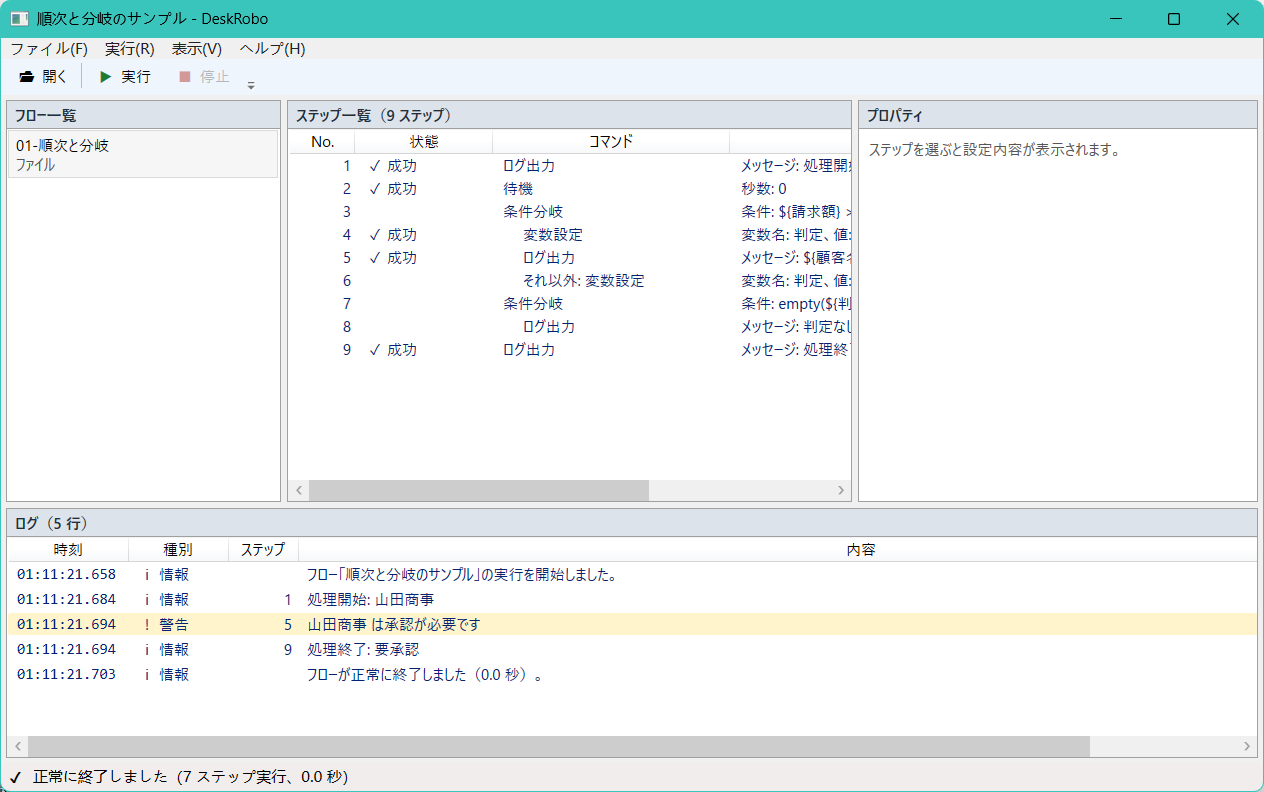
Build a flow by stacking commands such as "Read Excel", "Click" and "Move file" from top to bottom. Conditions, loops and variables are supported. (The app's interface is in Japanese.)
DeskRobo reads and writes Excel files (.xlsx) directly, so large sheets are processed quickly without starting Excel. It works even on PCs without Office.
Clicks and typing target Windows UI elements by name. Screens without accessible elements fall back to image recognition, and web systems are driven through Microsoft Edge, which comes with Windows.
Every step is logged, and the screen is saved automatically at the moment of failure. Timeouts, retries and skipping can be configured per step.
Run flows from the built-in Windows Task Scheduler and check the result by exit code. Nothing stays resident, so no memory is used when you are not running flows.
Just extract the ZIP. All required runtimes are bundled, so no extra software or administrator rights are needed.
When a flow stops, AI explains in Japanese which step failed, what happened and how to fix it.
New versions are installed automatically at a time that won't interrupt your work.
Pick the operations you need from the command list and arrange them in order. Settings such as file names and cell addresses go in the panel on the right.
Press "Run" and the robot works through the steps. You can see which step is running and stop at any time.
Results are recorded in the log. Once the flow works, register it in Task Scheduler to run automatically at a set time every day.
Commands available today. More will be added over time.
Flows on the left, steps in the middle, settings on the right and the log at the bottom: everything you need at a glance, in a calm layout.
Before you start, please check that your PC meets the following requirements.
| OS | Windows 11 version 23H2 or later (Home / Pro / Enterprise) |
|---|---|
| CPU | x64 (64-bit). Windows on ARM is not supported at this time. |
| Additional software | None (.NET runtime included) |
| Microsoft Office | Not required (Excel files are read and written without Office) |
| Browser | Microsoft Edge (included with Windows 11) |
| Permissions | No administrator rights required |
| Display scaling | 100%, 125%, 150% and 175% |
| Interface language | Japanese (Japanese folder and file names and paths with spaces are supported) |
| Internet connection | Not required for core features. Used only for AI features and update checks. |
Windows 10 or earlier, macOS and Linux are not supported.
Official pricing is still being decided. The prices below are reference figures for internal review and are not final.
Reference price — under review (参考価格・検討中)This price list is a draft for discussion. Purchases and contracts are not available yet.
Reference price — under review (参考価格・検討中)
¥030 days
Try every basic feature for a limited period.
Reference price — under review (参考価格・検討中)
¥2,980per month (tax incl.) / per PC
For individuals who want to automate their daily routine work.
Reference price — under review (参考価格・検討中)
¥4,980per month (tax incl.) / per PC, from 5 PCs
For departments and teams that share flows.
These reference prices are a provisional draft based on typical price ranges for Windows desktop RPA. Annual discounts, education plans and AI usage limits are also under review.
Get the latest version below. No installation required: just extract the ZIP file.
For Windows 11 (64-bit)
Checking for the latest version…
Our code signing certificate is still being prepared, so Microsoft Defender SmartScreen shows a confirmation screen for newly published apps. This step will no longer be needed once the certificate is in place.
To check that the download has not been tampered with, run the following command in PowerShell and confirm that the value matches the SHA-256 shown above.
Get-FileHash "$env:USERPROFILE\Downloads\DeskRobo.zip" -Algorithm SHA256No. Right-click the downloaded ZIP file, choose "Extract All", then double-click DeskRobo.exe in the extracted folder. No administrator rights are needed.
Our code signing certificate is still being prepared, so SmartScreen shows a confirmation screen for newly published apps. Click "More info" and then "Run anyway". It only appears the first time.
Because DeskRobo automates on-screen operations, some antivirus products may ask for confirmation or scan it. For use at work, please ask your system administrator to allow the DeskRobo folder.
Yes. Excel files (.xlsx) are read and written without Office, so it runs on PCs without Excel.
Yes. Building and running flows happens entirely on your PC. An internet connection is needed only for AI error explanations and update checks.
Files and screen content handled while a flow runs are never sent outside. What is sent when you use AI features is explained in detail on the Privacy & Security page. Privacy
Yes. Register them in the built-in Windows Task Scheduler to run daily, weekly or at any other timing. See the Getting started page for the steps. Getting started
Flows that only handle files and Excel can run even while signed out. Flows that operate app or browser screens must run while you are signed in to Windows with the screen displayed.
Please don't touch the mouse or keyboard while a flow operates the screen; your input can overlap with the robot's and cause the wrong button to be pressed. Flows that only handle files and Excel let you keep working as usual.
Yes. Operation has been checked at 100%, 125%, 150% and 175%, including multiple monitors with different scaling.
The log at the bottom of the window shows which step, which command and why it stopped, and the screen at the moment of failure is saved automatically. AI error explanation describes the cause and fix in Japanese.
Download the latest version from this page. Automatic updates are planned, so new versions will be installed for you.
Just delete the DeskRobo folder. To also remove settings and logs, type %LOCALAPPDATA%\DeskRobo into the Explorer address bar and delete that folder as well.
DeskRobo is for Windows 11 only. macOS is not supported.
Pick one operation you repeat every day and let DeskRobo handle it.